DE
DE EN
EN FR
FR ES
ES NL
NL PL
PL IT
ITGuide
How pdfMachine works – from creating PDFs to the advanced features.

Open a document
Open a document you want to print from any program – for example Word, Excel, your browser or your ERP system.
Print the document
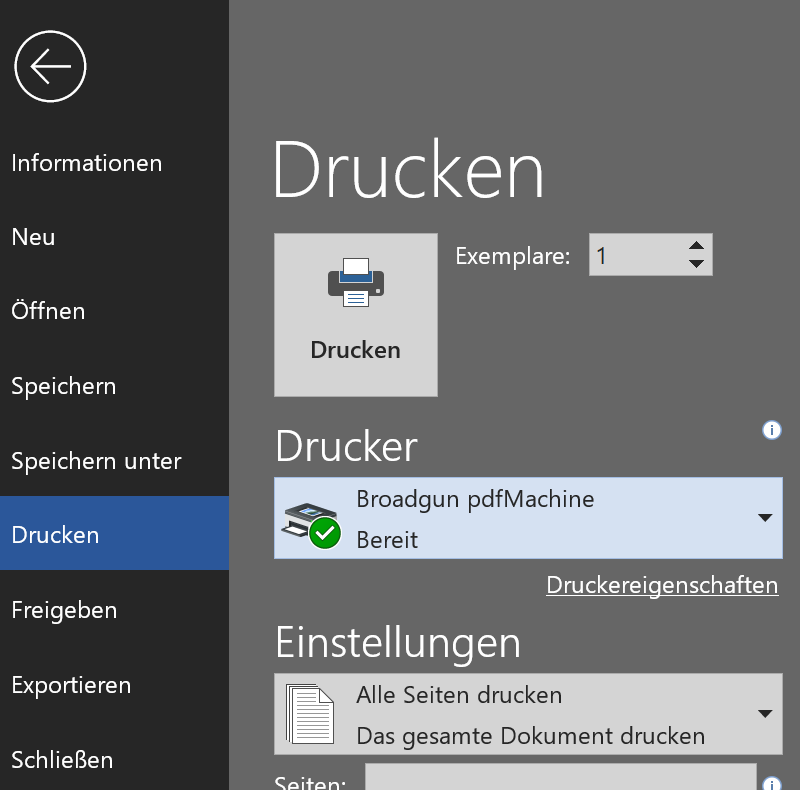
Wählen Sie aus dem Datei-Menü den Punkt „Drucken" – genau so, wie Sie jedes andere Dokument ausdrucken würden.
Select the printer
Wählen Sie im Druckdialog den Drucker „Broadgun pdfMachine" aus und klicken Sie auf „OK" bzw. „Drucken".
PDF preview with option selection
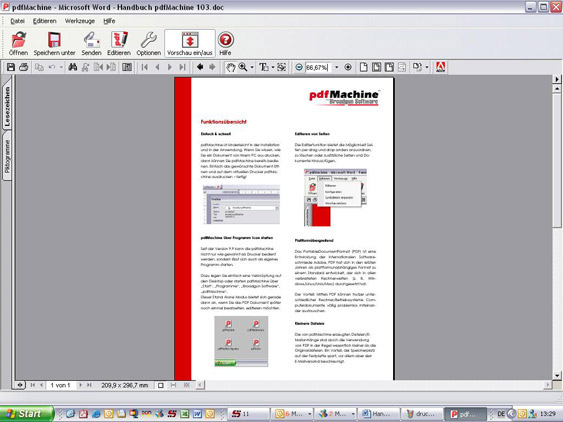
The pdfMachine window opens, showing a preview of the PDF that has already been created in Adobe Acrobat Reader. From here you can save the document, send it by email, edit it further or merge it with additional pages.

Registration
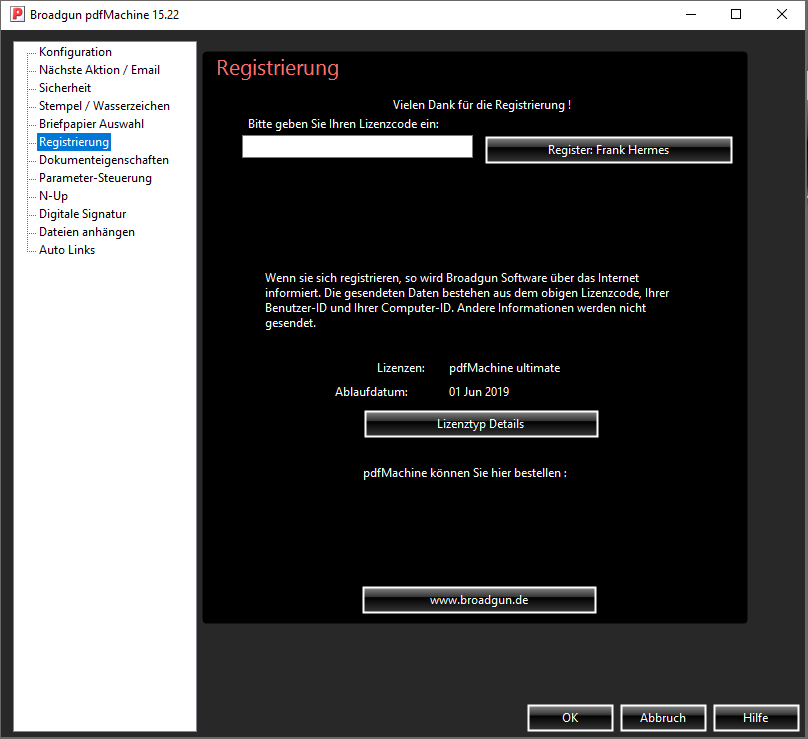
After purchasing, you will receive your registration code by email. Enter this code once in the registration area of pdfMachine to activate the full version and unlock all the features of your edition.
Configuration & settings
Customize pdfMachine to suit your needs: default save path, file name templates, quality levels, email programs and much more – all via the clearly arranged settings menu.
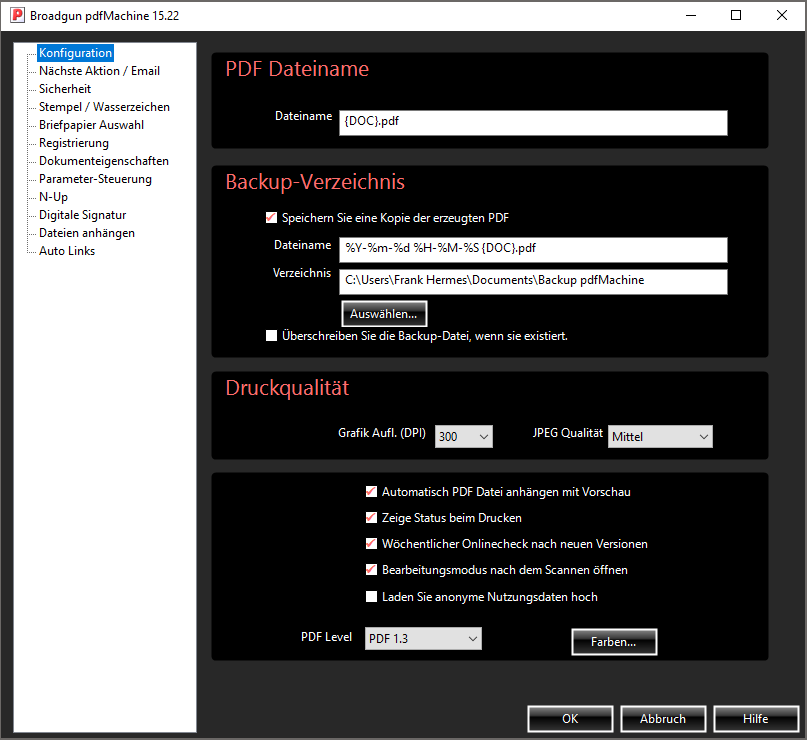
Sicherheit & Verschlüsselung pro & ultimate
pdfMachine supports PDF encryption up to 128 bit – the same level of security as online banking. By setting passwords and assigning individual permissions, you can precisely restrict how the document is used.
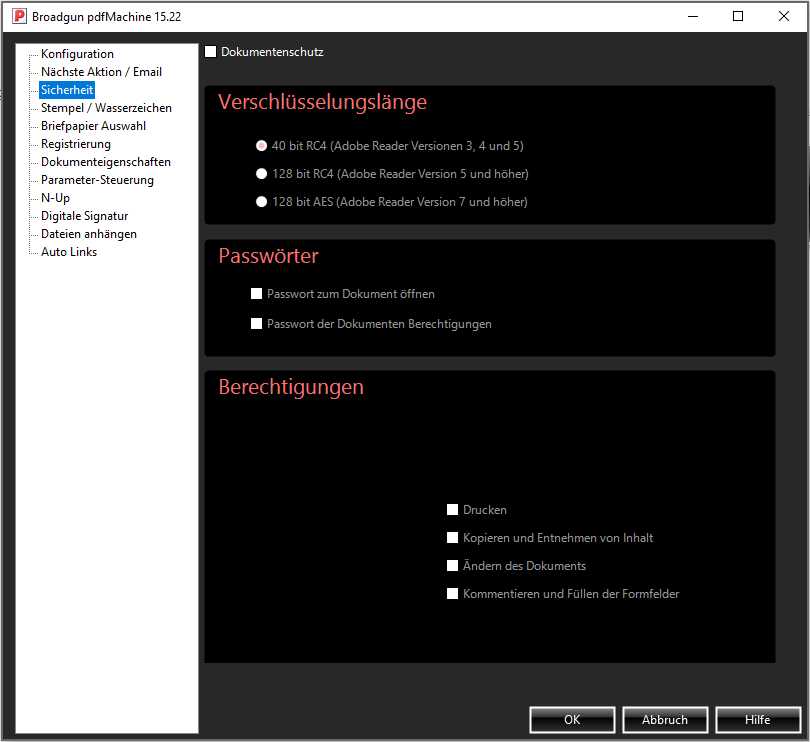
Text-Wasserzeichen pro & ultimate
Add and design a simple diagonal text watermark. When the feature is enabled, every document created automatically includes the watermark in the printed output.
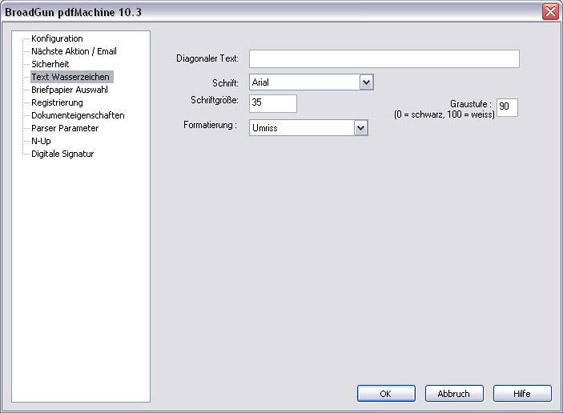
N-Up: Mehrere Seiten auf einem Blatt pro & ultimate
This feature lets you combine several pages of any document onto a single sheet. This makes documents with many pages easier to view and can compress very large documents.
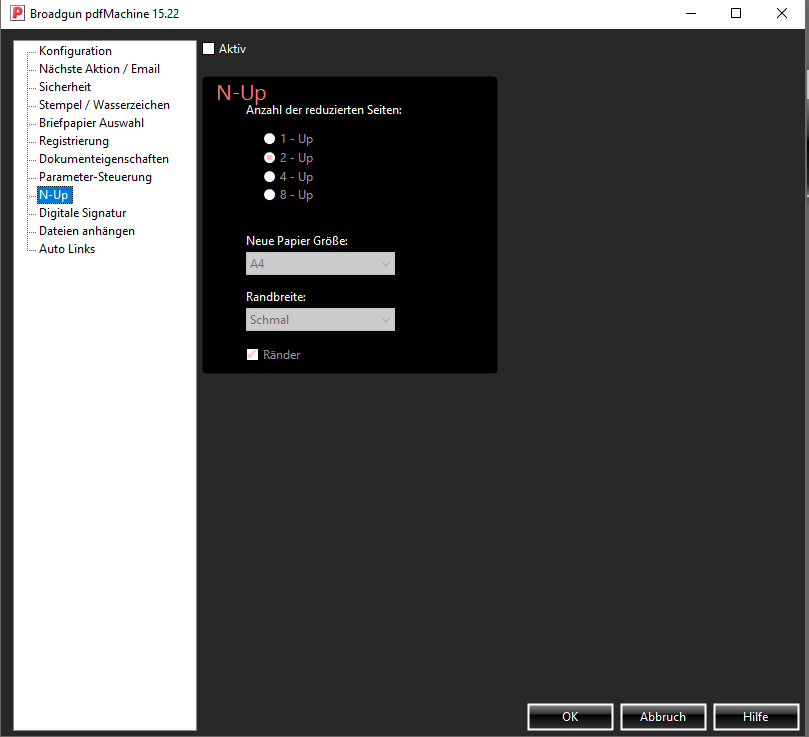
Seiten editieren pro & ultimate
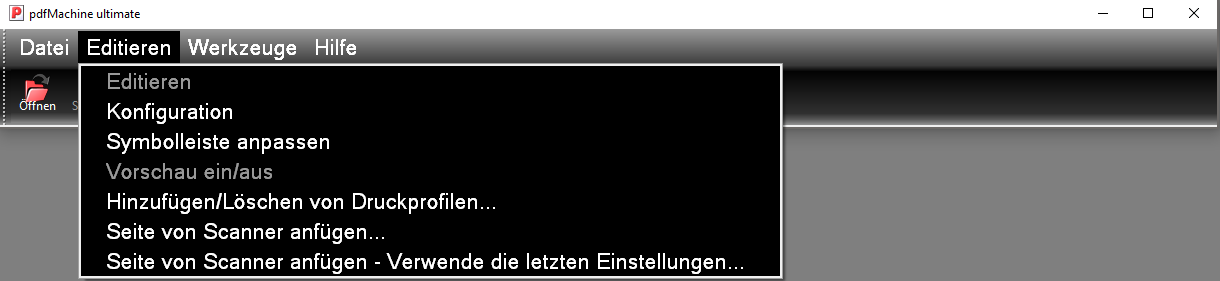
The editing feature lets you rearrange pages by drag & drop, delete them or add additional pages and documents – all simply with the mouse.